
Usage Profiles
Folio ships with three profile presets that change what the app shows and hides. You pick the profile that matches how you want to use it — no code changes required.
How to apply a profile
- Sign in as admin.
- Go to Admin → Settings.
- Click the Profile Presets tab.
- Click the profile button you want.
- Confirm the dialog.
- Reload the page — the UI updates after a reload.
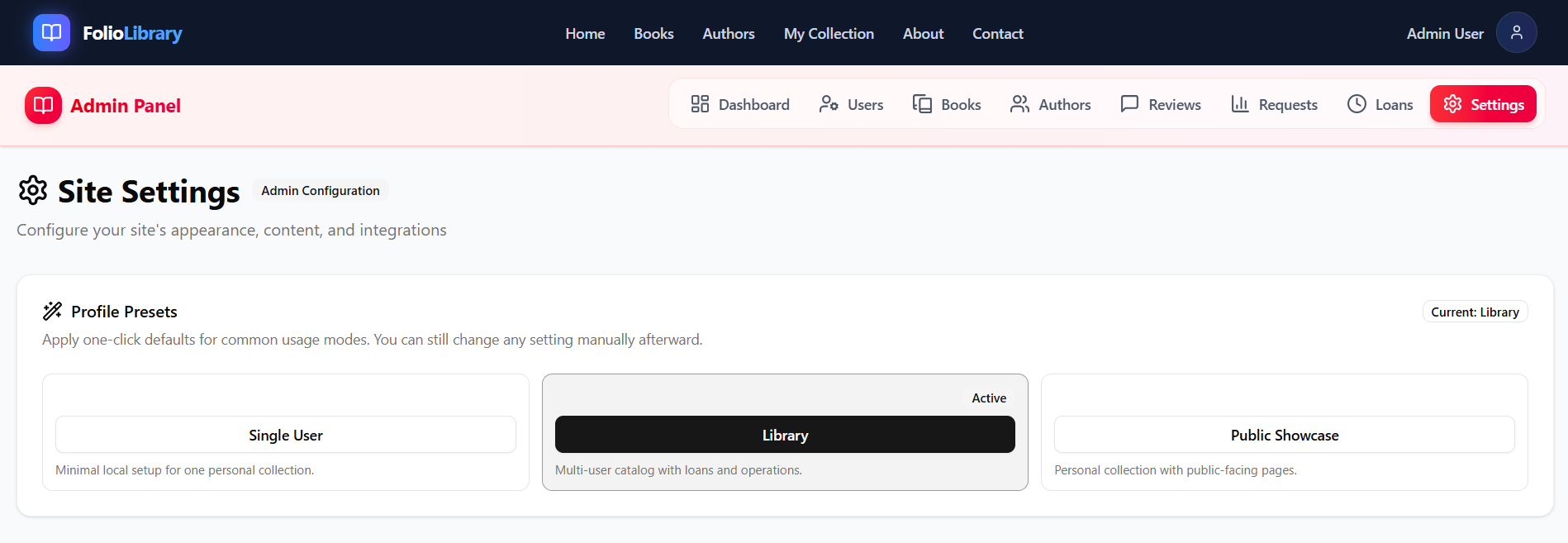
Single User — Personal Library
Best for: one person using Folio on their own computer to track their personal books.
What it does:
- Shows a clean, minimal home page.
- Hides everything related to multiple users: loan workflows, borrow requests, user management.
- Admin panel shows only what you need: Books, Authors, Settings.
- Footer shows copyright only.
When to use this: you just want a digital catalog of your own books with no multi-user complexity.
Library — Team Mode
Best for: small libraries, book clubs, or teams that lend books between members.
What it does:
- Full landing page and navigation.
- Multiple users can register and log in.
- Users can browse available books, request to borrow them, and track their loans.
- Admin panel shows Users, Reviews, Loan management, Request management.
- All admin settings tabs are available.
When to use this: you manage a collection that others borrow from.
Public Showcase
Best for: displaying your collection as a public website that anyone can browse.
What it does:
- Shows a showcase-style landing page.
- Public visitors can browse Books and Authors.
- Borrowing and request workflows are fully hidden.
- Admin panel hides Loans and Requests.
- Admin settings focus on appearance: General, Pages, Hero, Stats, About, Footer, Contact.
When to use this: you want to share your collection online without allowing borrowing.
Comparison table
| Feature | Single User | Library | Public Showcase |
|---|---|---|---|
| Books / Authors browsing | ✅ | ✅ | ✅ |
| Multiple user accounts | ❌ | ✅ | ✅ |
| Loan tracking | ❌ | ✅ | ❌ |
| Book request workflow | ❌ | ✅ | ❌ |
| My Collection page | ❌ | ✅ | ❌ |
| Admin: Users & Reviews | Hidden | Visible | Visible |
| Admin: Requests & Loans | Hidden | Visible | Hidden |
| Full admin settings | ❌ | ✅ | Partial |
Switching between profiles
You can switch profiles at any time — your data is never deleted when you change profiles. Just go back to Admin → Settings → Profile Presets and pick a different one.