
Managing Books
Books are the core of Folio. You can add them manually or import them automatically from public book databases.
Finding books in the admin panel
- Sign in as admin.
- Click Admin in the navigation.
- Click Books in the admin sidebar.
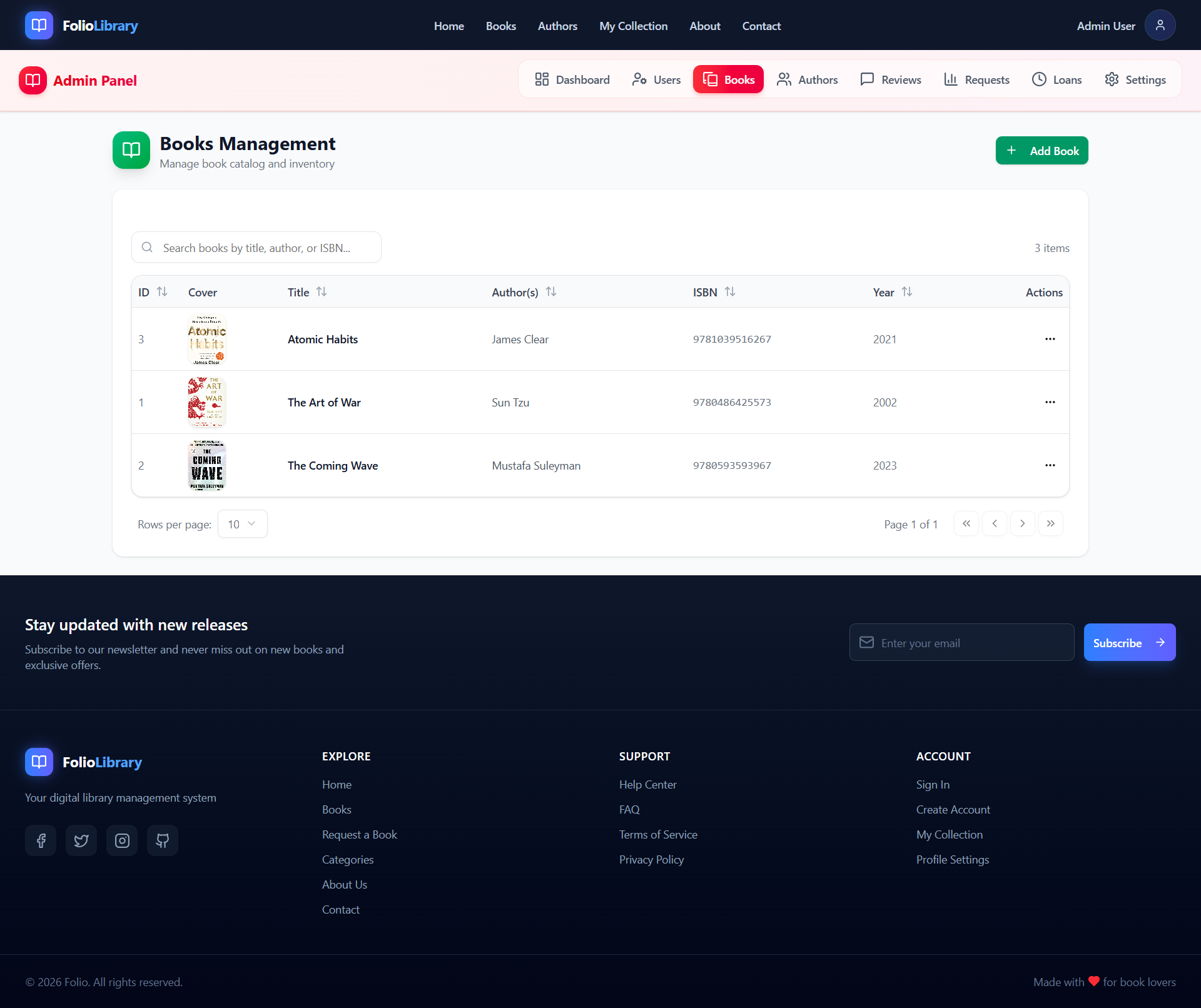
You'll see a list of all books in your collection with their title, author, and cover.
Adding a book manually
Use this when you know the book details and don't need to import from an external source.
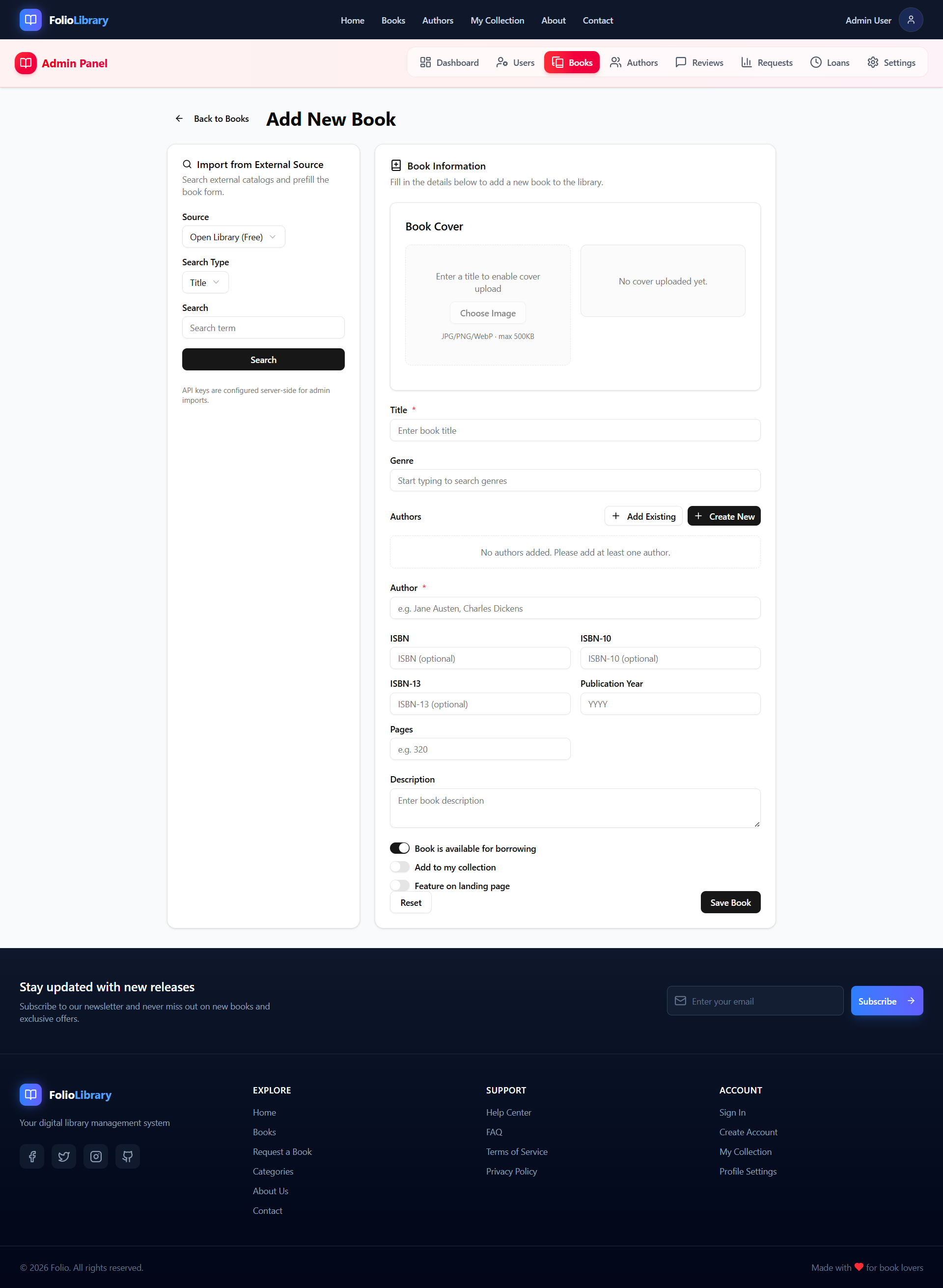
- In Admin → Books, click Add Book (or the + button).
- Fill in:
- Title (required)
- Author — select an existing author or create one
- ISBN — optional but recommended (used for external imports and deduplication)
- Description — a brief blurb
- Cover image — upload a file or paste a URL
- Genre, language, pages — optional metadata
- Click Save.
Importing a book from an external source
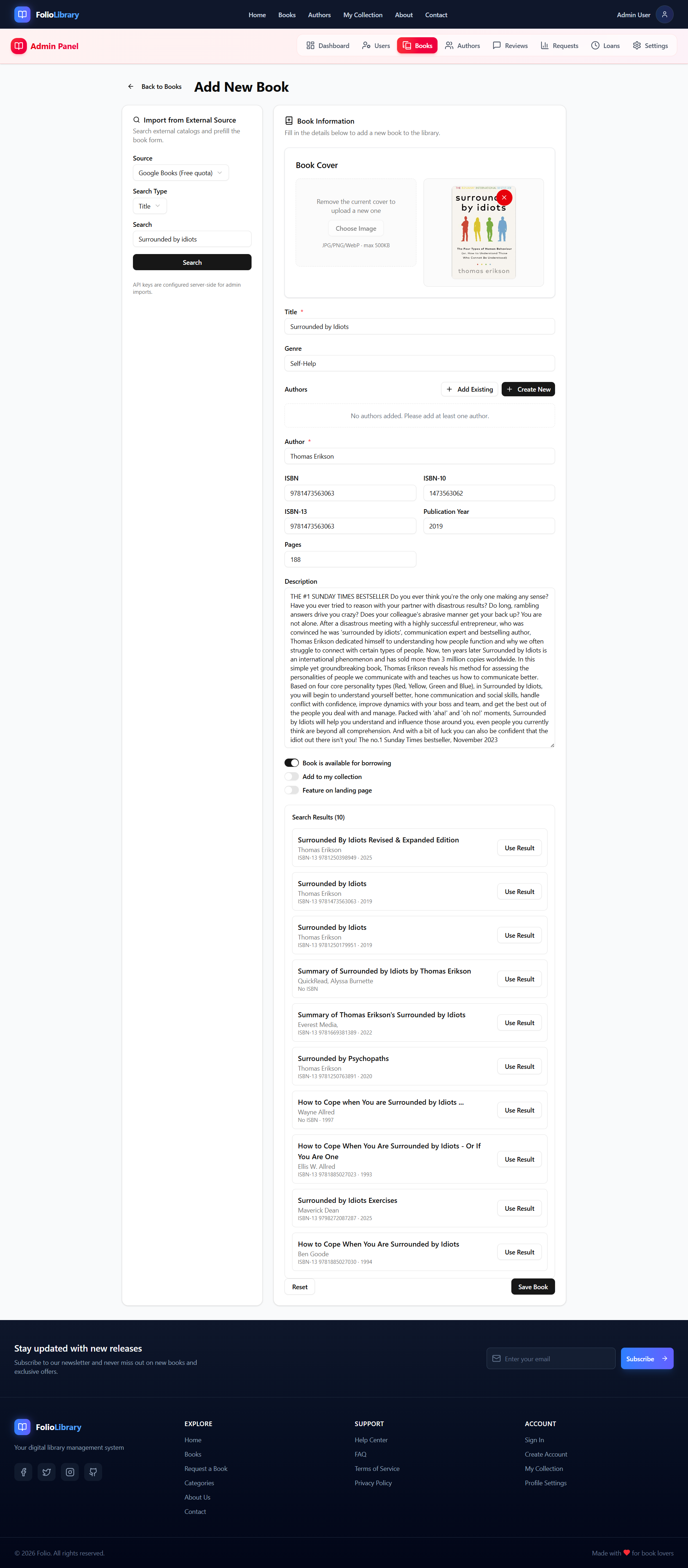
Folio can search public databases and fill in book details automatically. This is the fastest way to add books.
- In Admin → Books, click Add Book.
- Click the External Search tab (next to "Manual").
- Select a source you want to search:
- Open Library — free, large catalog
- Google Books — free with an API key
- Library of Congress — US national library catalog
- Wikidata — structured knowledge base
- ISBNdb (paid) — high-quality ISBN data
- WorldCat (paid) — union catalog
- Type a title, author name, or ISBN in the search box.
- Click a result to fill in the form with the fetched data.
- Review and adjust any fields, then click Save.
ISBN search is the most accurate
If you know the ISBN, searching by ISBN gives the most accurate result with correct edition details.
Editing a book
- In Admin → Books, click the book you want to edit.
- Click Edit.
- Make your changes and click Save.
Deleting a book
- In Admin → Books, open the book.
- Click Delete.
- Confirm the dialog.
WARNING
Deleting a book removes it from your catalog permanently. Active loans referencing it will not be deleted automatically — resolve loans first.
ISBN handling
Folio stores up to three ISBN variants per book: isbn (primary), isbn10, and isbn13. Uniqueness is enforced — you cannot add two books with the same ISBN.
- Primary
isbnprefers ISBN-13, falls back to ISBN-10. - External imports automatically parse and separate ISBN-10/ISBN-13.
Cover images
You can provide a cover image by:
- Uploading a file (it gets stored via Uploadthing).
- Pasting an external image URL (it's stored as a URL reference).
Recommended cover dimensions: 400 × 600 px (2:3 portrait ratio).
Next: Managing Authors
Most books need authors. Learn how to add and enrich author records: