
Managing Authors
Author profiles give your books richer context — biographies, birth dates, photos, and alternate names.
Viewing authors
- Go to Admin → Authors for the full admin list.
- Go to /authors (the public page) to see what visitors see.
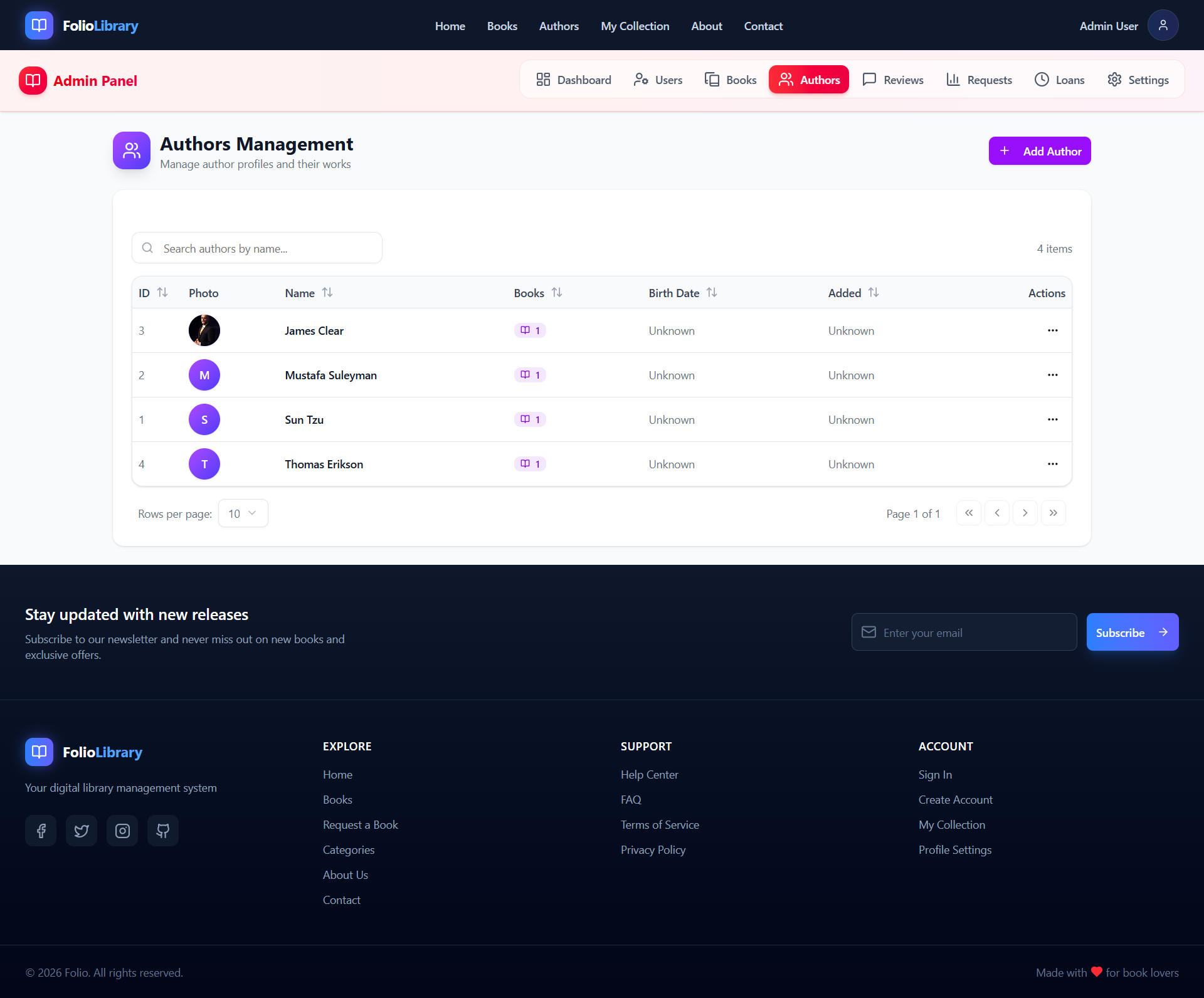
Adding an author manually
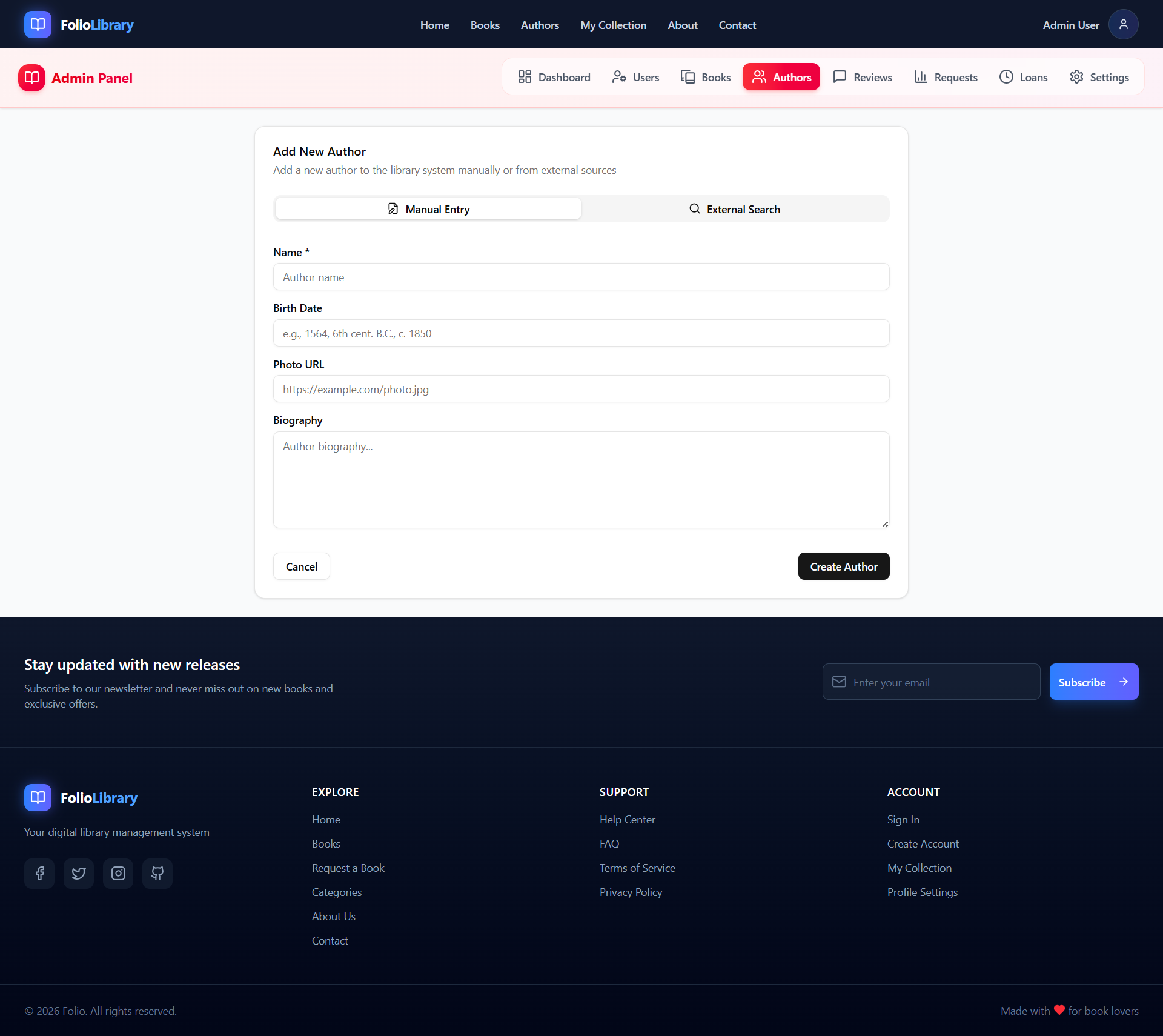
- In Admin → Authors, click Add Author.
- Fill in:
- Name (required)
- Biography — a short description
- Birth date — supports historical formats like
6th cent. B.C.orc. 1564 - Death date (if applicable)
- Nationality
- Photo — upload or paste a URL
- Click Save.
Importing author data from external sources
Folio searches three public sources for author information:
| Source | Best for |
|---|---|
| Open Library | Biographies, photos, alternate names |
| Wikidata | Rich biographical data, birth/death dates |
| Google Books | Author info with linked works |
Steps
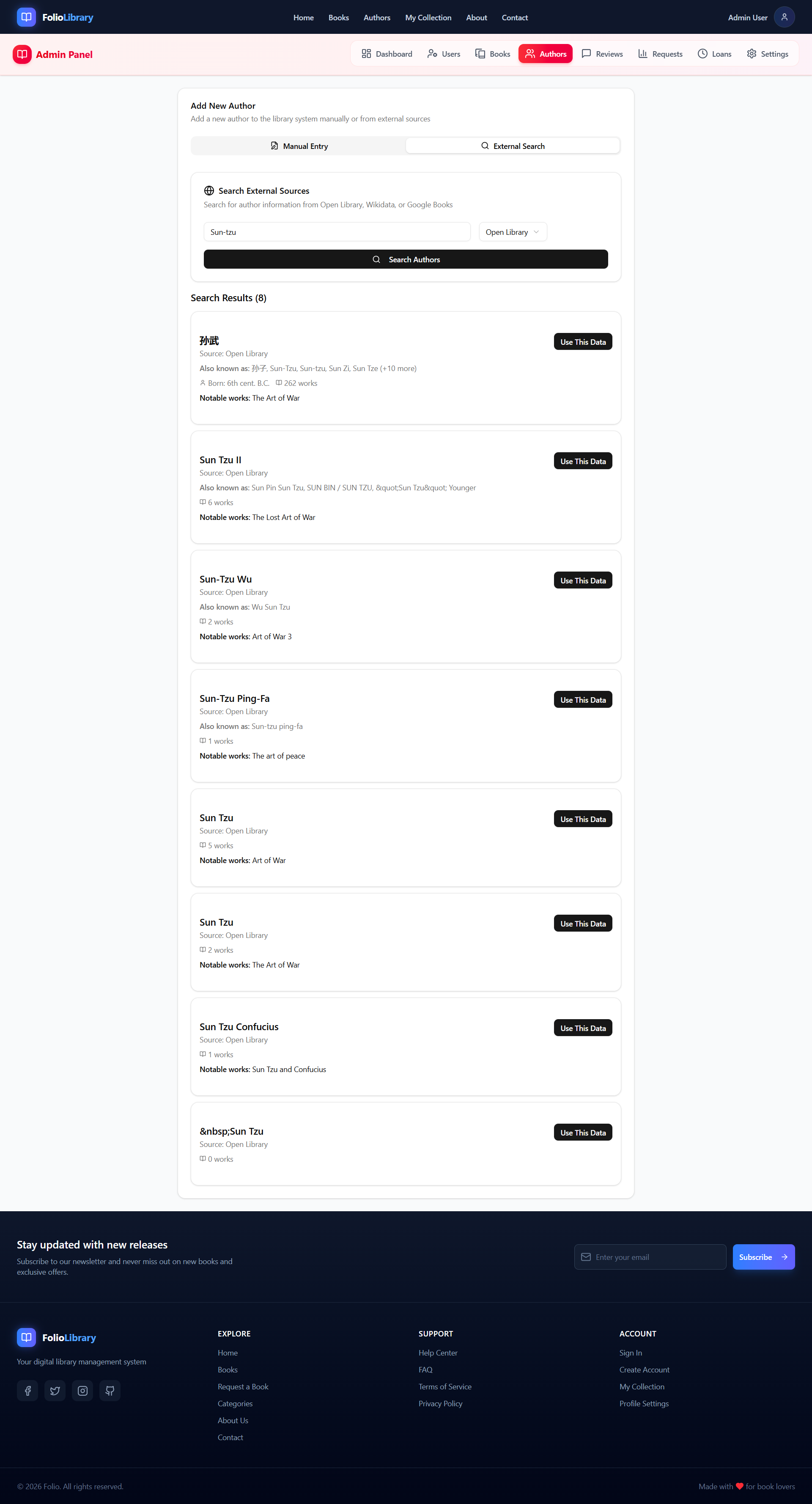
- In Admin → Authors, click Add Author.
- Click the External Search tab.
- Select a source.
- Type the author's name.
- Click a result to pull in the data.
- Review the fields and click Save.
Alternate names
For authors with names in multiple scripts (e.g., 孙武 → Sun Tzu), Folio stores up to 15 alternate name variants from OpenLibrary so you can search by any version.
Enriching an existing author
Already have an author but missing their biography or photo? Use the enrich feature.
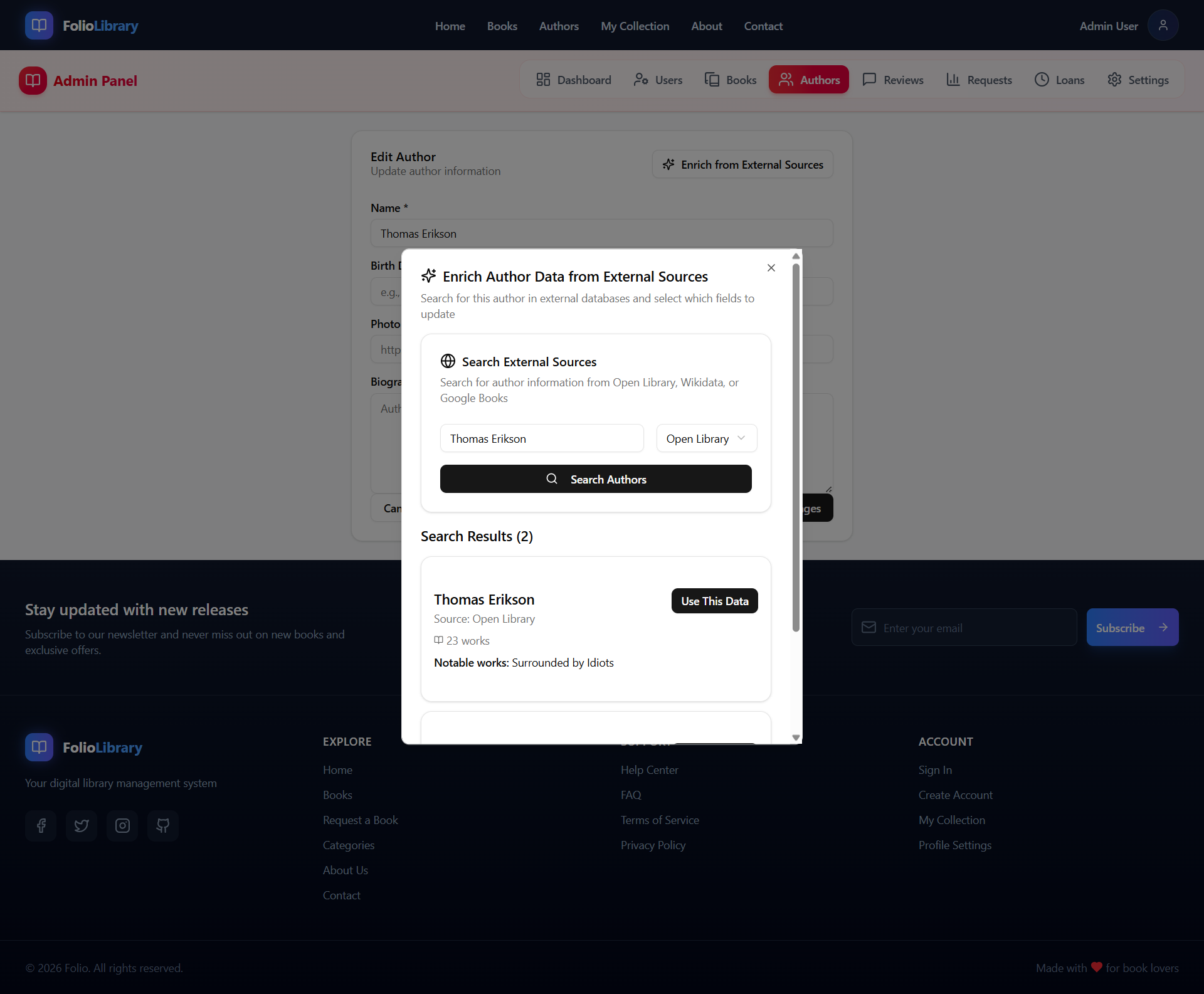
- Open the author's detail page.
- Click Enrich from External Sources.
- Search for the author on any provider.
- A field-by-field merge UI appears — tick which fields you want to import.
- Click Apply Selected.
Only the fields you tick will be updated. Existing data is not overwritten without your confirmation.
Duplicate detection
When you search for an author by name, Folio checks if a similar author already exists using fuzzy name matching (70% similarity threshold). If a likely duplicate is found:
- A warning banner appears showing the existing matching author.
- You can dismiss the warning and proceed if they are different people.
- Or click the duplicate to open it instead of creating a new record.
Editing and deleting
- Edit: open the author → click Edit, update fields, click Save.
- Delete: open the author → click Delete.
Deletion blocked if books exist
If an author has books in your catalog, you cannot delete them until those books are deleted or reassigned to a different author. Folio will show the exact book count blocking deletion.
Historical dates
Folio stores birth and death dates as plain text, so formats like:
c. 800 B.C.6th cent. B.C.fl. 12001564
…are all valid and displayed as-is. No reformatting happens.