
Loans & Requests
Library profile required
Loan and request features are only available in the Library usage profile. In Single User or Public Showcase mode, these workflows are hidden. See Usage Profiles to switch.
How loans work
A loan is a record that tracks a physical book being borrowed by a user.
Before a user can borrow or request books, their account must meet the configured minimum credit balance.
Lifecycle:
- Admin creates a loan, assigning a book to a user with a due date.
- The user can see their active loans at My Loans.
- Admin marks the loan as returned when the book comes back.
- Overdue loans trigger reminder emails automatically.
Credit behavior
- Book loans use the configured book price.
- Credit is deducted when a loan request is created.
- If a loan is returned normally, the charged amount is refunded.
- If a loan is marked lost by admin, the book price remains charged.
If the user balance is below the required threshold or below the selected book price, borrowing is blocked.
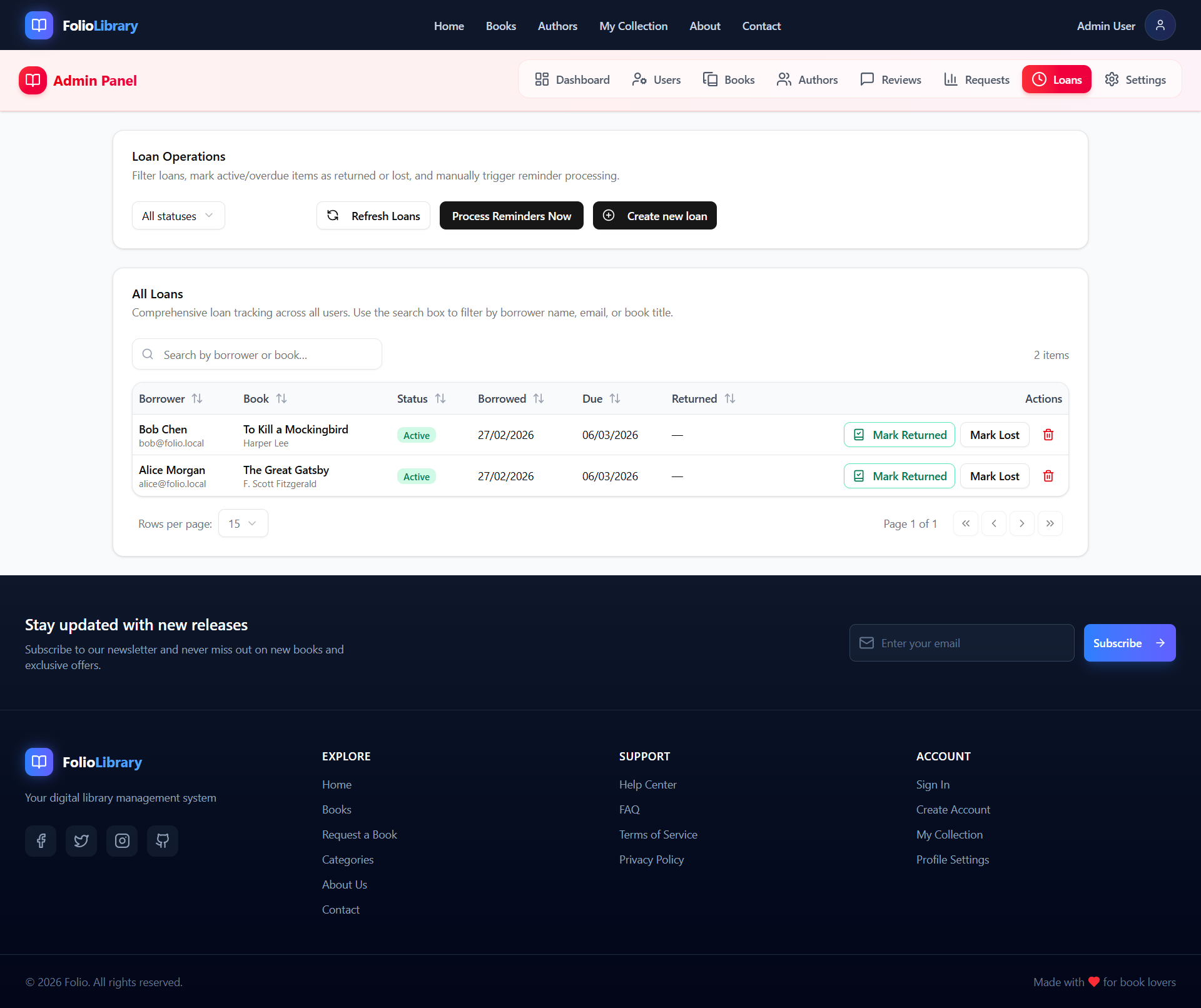
Creating a loan (admin)
- Go to Admin → Loans.
- Click New Loan.
- Select the user, the book, and set a due date.
- Click Create.
The dialog shows the selected user's credit and selected book price. If credit is insufficient, the warning is shown in red and loan creation is disabled.
The user will see the loan appear in their My Loans page.
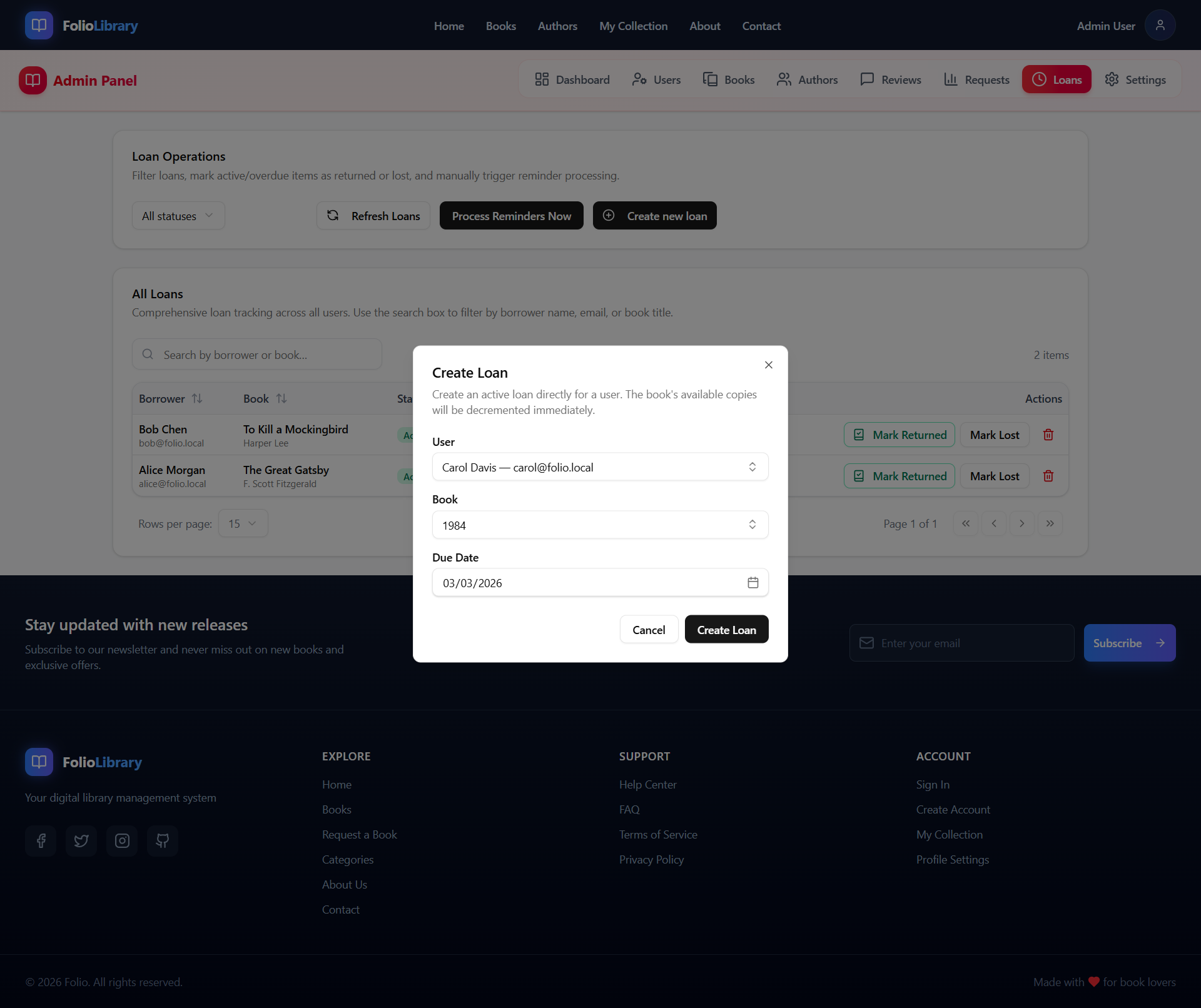
Marking a loan as returned
- Go to Admin → Loans.
- Find the loan (use the search box or status filter).
- Click Mark Returned on an active or overdue loan.
- A dialog opens showing the full loan details — book title, author, borrower name and email, borrowed date, and due date.
- Select the Return Date (defaults to today; you can backdate if needed).
- Click Confirm Return.
The loan status changes to Returned, the book's available copies are restored, and the borrower automatically receives a confirmation email thanking them for returning the book on time and acknowledging their use of the library.
Searching and filtering loans (admin)
The loan list includes built-in search, sorting, and pagination — consistent with other admin list pages:
- Search box — instantly filters by borrower name, email, or book title.
- Status filter — dropdown to show only loans of a specific status (Pending, Active, Overdue, Returned, Lost, Rejected, or All).
- Column sorting — click any column header to sort ascending or descending.
- Pagination — configurable page size (10 / 15 / 25 / 50 rows per page).
Overdue reminders
Folio runs a background job that checks for overdue loans and sends reminder emails. This runs automatically — no configuration needed for local development.
For production, ensure your email settings are configured in the environment file (see Admin Settings).
How book requests work
A request lets registered users ask for a book to be added to the library or reserved for them.
Lifecycle:
- A registered user goes to Request a Book in the navigation.
- They submit a request with book title, author, and a note.
- Admin sees the request in Admin → Requests.
- Admin can approve, reject, or fulfill the request.
Users below the minimum credit threshold cannot submit new requests.
Borrowing multiple books
Folio supports batch borrow requests through API (/loans/batch) with partial success:
- Each book is validated independently (availability, duplicates, remaining credit).
- Some books can succeed while others fail in the same request.
- The response includes per-book success/failure details and updated remaining credit.
Managing requests (admin)
- Go to Admin → Requests.
- Click a request to open it.
- Actions available:
- Approve — accept the request, send confirmation to the user.
- Reject — decline with an optional note.
- Mark Fulfilled — the requested book has been added to the catalog.
My Loans (user view)
Logged-in users can see their current and past loans at:
- Navigation → My Loans
Each entry shows the book, due date, and status (active / returned / overdue).