
Your First Login
You've installed the prerequisites. Now you'll start Folio and log in for the first time.
Step 1: Start the database
Open a terminal in the Folio folder and run:
yarn docker:upThis starts a local PostgreSQL database inside Docker. You'll see output as the containers start up. Wait until it settles (about 10–20 seconds).
You should see services for:
| Service | Address |
|---|---|
| PostgreSQL database | localhost:5432 |
| PgAdmin (database viewer) | http://localhost:5050 |
| Mailhog (email inbox preview) | http://localhost:8025 |
TIP
You don't need to open PgAdmin or Mailhog — they're available if you ever want to peek at the database or test emails.
Step 2: Create environment files
The app needs two small configuration files. These hold settings like database connection details.
Open your terminal in the Folio folder and run these two commands:
# Windows (Command Prompt):
copy apps\api\.env.example .env
copy apps\web\.env.example apps\web\.env

# Mac / Linux:
cp apps/api/.env.example .env
cp apps/web/.env.example apps/web/.env
For a first local run, the default values in these files are fine. You don't need to edit them.
Step 3: Start the backend (API)
Open a new terminal window in the Folio folder and run:
yarn dev:apiLeave this terminal running. You should see:
Server is running on port 3000
Database connected
Step 4: Start the frontend (Web)
Open another new terminal window in the Folio folder and run:
yarn dev:webLeave this terminal running too. You should see output ending with:
➜ Local: http://localhost:4200/Step 5: Open Folio in your browser
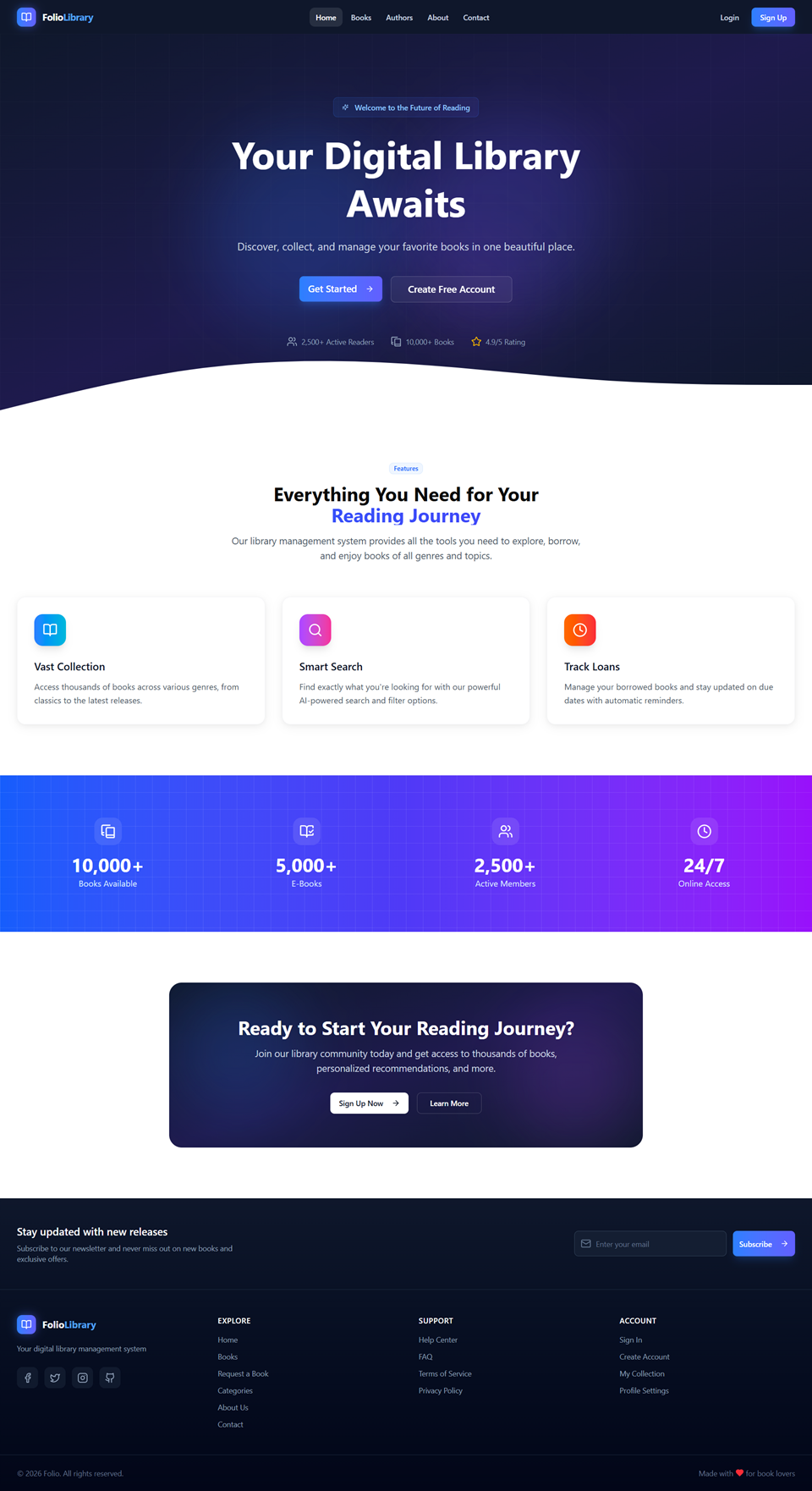
Open your browser and go to: http://localhost:4200
You should see the Folio landing page.
Step 6: Log in as admin
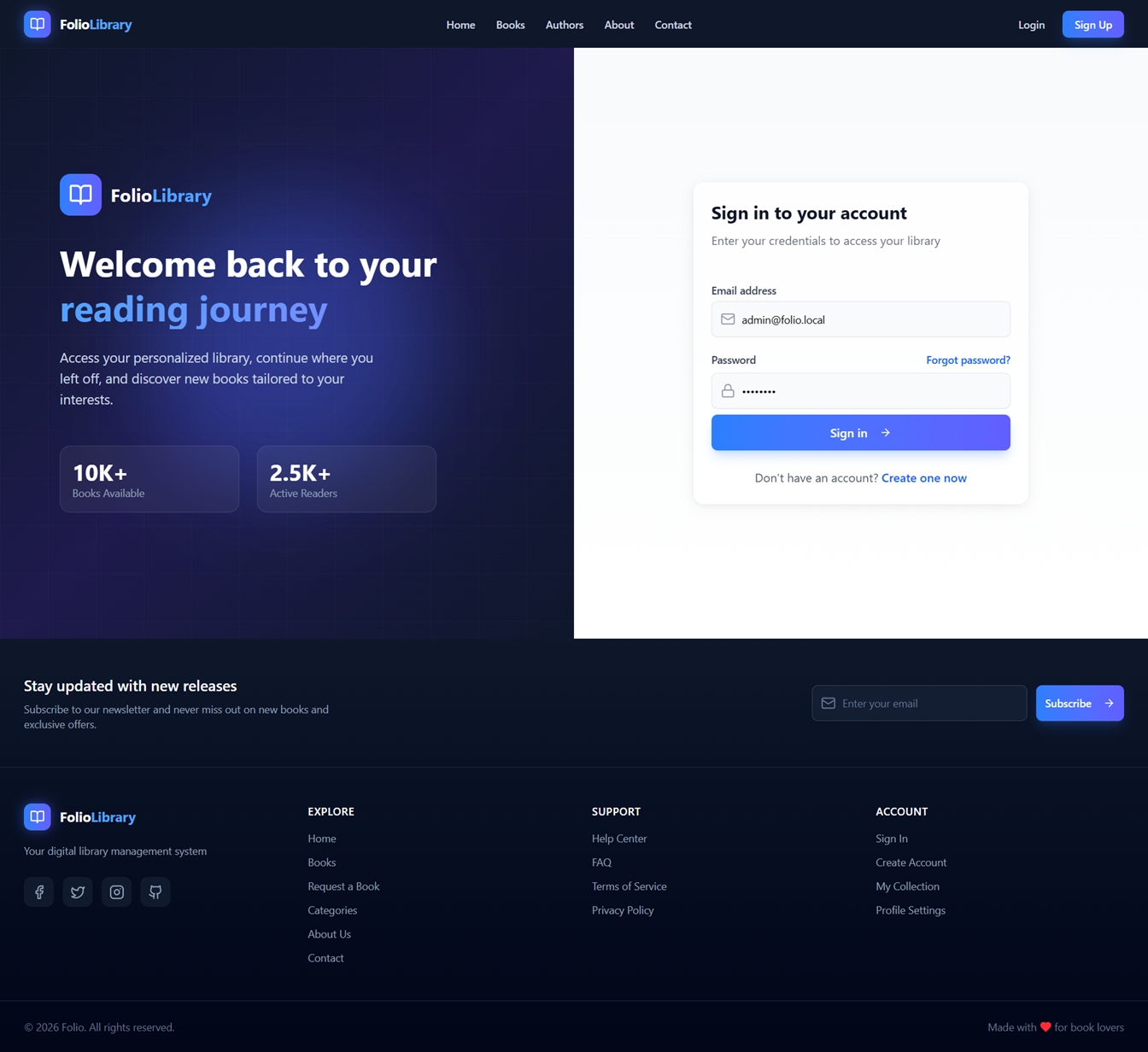
Click Sign In and use the pre-seeded admin account:
| Field | Value |
|---|---|
admin@folio.local | |
| Password | admin123 |
Change your password
After your first login, go to Admin → Users → your account and change the password to something secure. Anyone who starts Folio locally can try these default credentials.
What you see after login
The top navigation shows:
- Home — landing page
- Books — browse all books
- Authors — browse all authors
- Admin — (visible to admins only) management panel
The Admin section is where you manage books, authors, users, loans, and settings.
Stopping Folio
When you're done:
- Press
Ctrl + Cin the API terminal to stop the backend. - Press
Ctrl + Cin the Web terminal to stop the frontend. - To stop the database:sh
yarn docker:down
Next: choose your usage profile
Now that Folio is running, decide how you want to use it: